
How to connect via AnyDesk
This short guide from NetOffice TLV shows how we connect safely for remote help.
On-site visits: Tel Aviv and Gush Dan. Remote help: anywhere in Israel. We work every day, including Friday and Saturday.
Contents
Password rules
Security: give your AnyDesk number only to NetOffice TLV (WhatsApp 053-452-0055). Banks, police, and “security services” never ask for AnyDesk. Download only from the official site below, never from random links or attachments.
Windows
1 Download from the official page
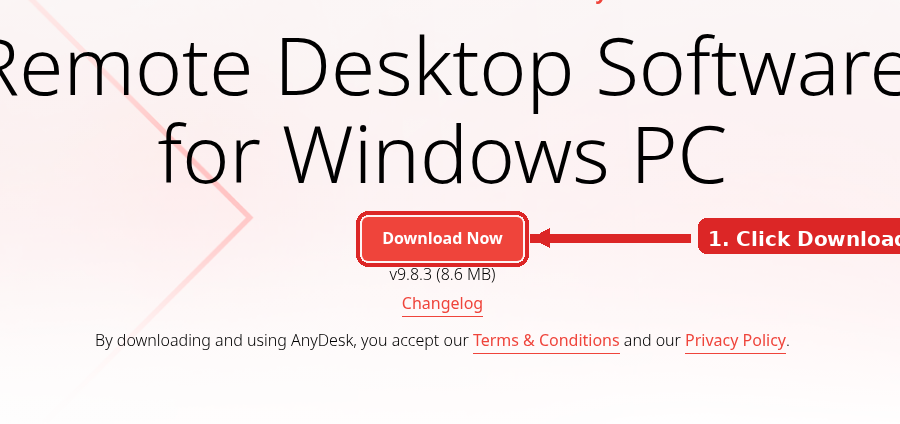
Open anydesk.com/downloads/windows and click Download. Do not use other sites.
2 Open AnyDesk and find your number
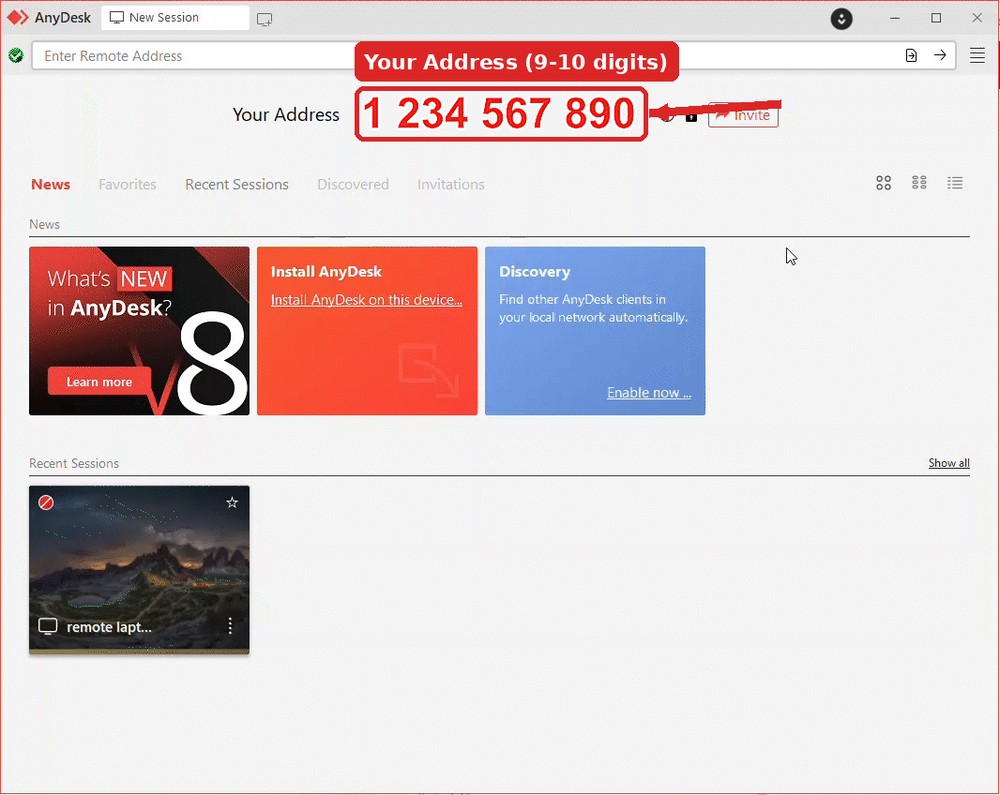
Run the downloaded file. You can use it without installing, or click Install if you prefer. In the main window, look at Your Address: a number of about 9-10 digits.
3 Send us the number on WhatsApp
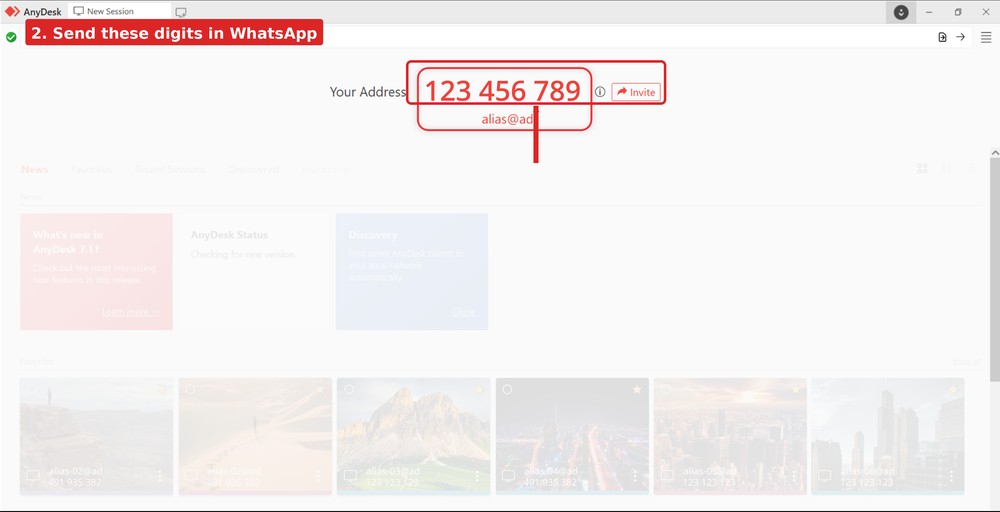
Copy or type the digits and send them to us on WhatsApp: 053-452-0055.
4 When we connect, press Accept
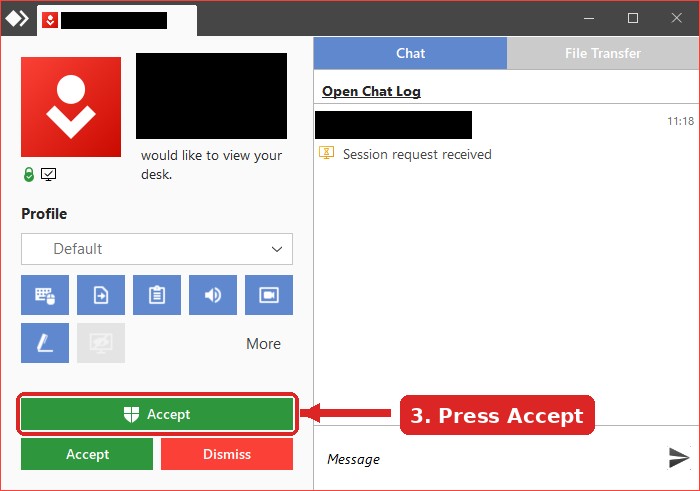
A window appears asking for access. Press the green Accept button. For a one-off session that is all you need.
Mac (macOS)
1 Download from the official page
Open anydesk.com/downloads/mac-os and download AnyDesk. Open the .dmg and drag AnyDesk to Applications (or follow the installer).
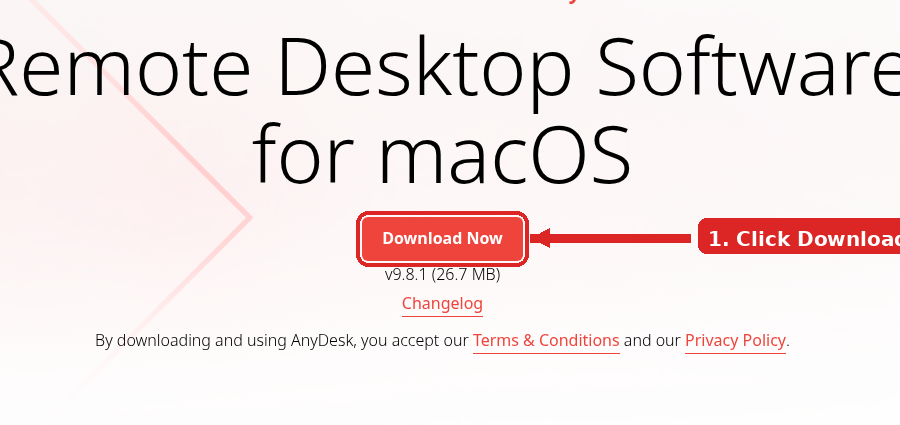
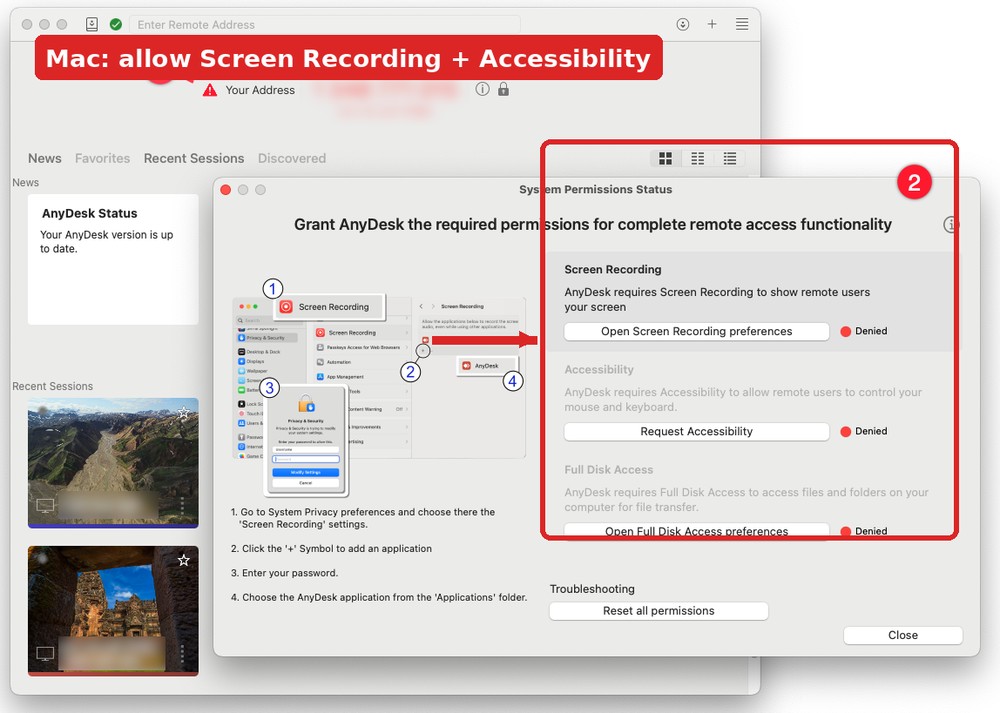
2 Allow Screen Recording and Accessibility
On first launch, Mac shows System Permissions Status. You must allow at least:
- Screen Recording (so we can see the screen)
- Accessibility (so we can use mouse and keyboard)
- Full Disk Access (needed for file transfer; recommended)
Path: System Settings → Privacy & Security. After Screen Recording or Full Disk Access, restart AnyDesk if Mac asks.
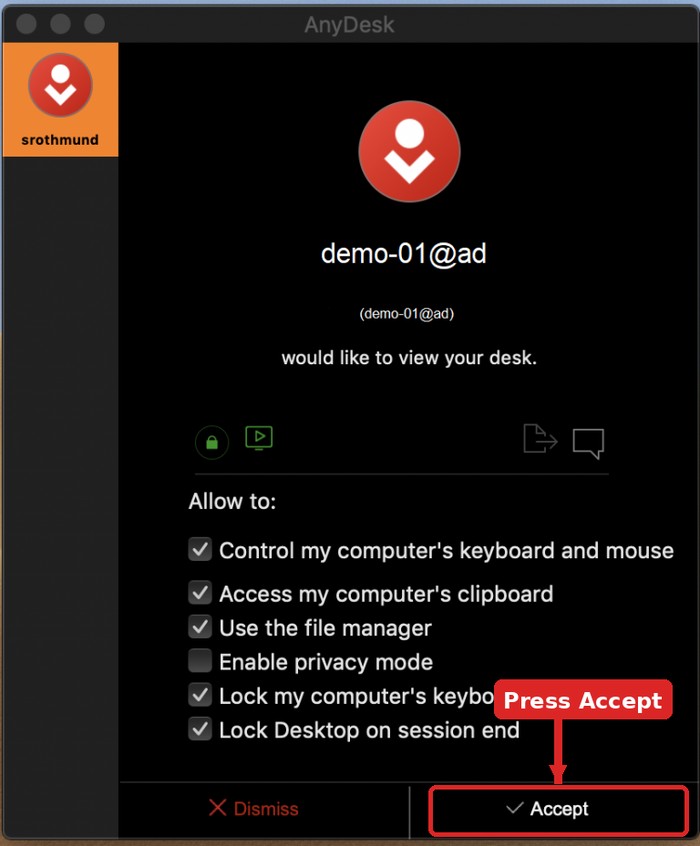
3 Send us your Address, then press Accept
Send the Your Address number on WhatsApp 053-452-0055. When we connect, press Accept.
After the job (Unattended Access)
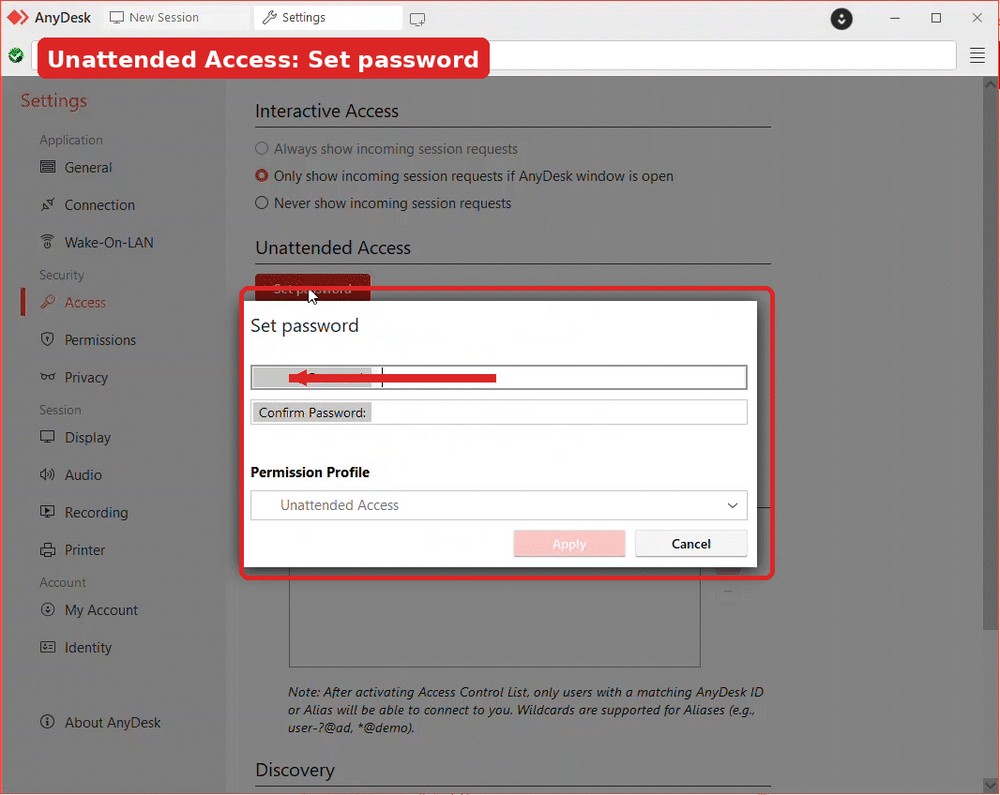
If we used Unattended Access (we set a password so we could reconnect without you clicking Accept each time), please close that access when the work is done.
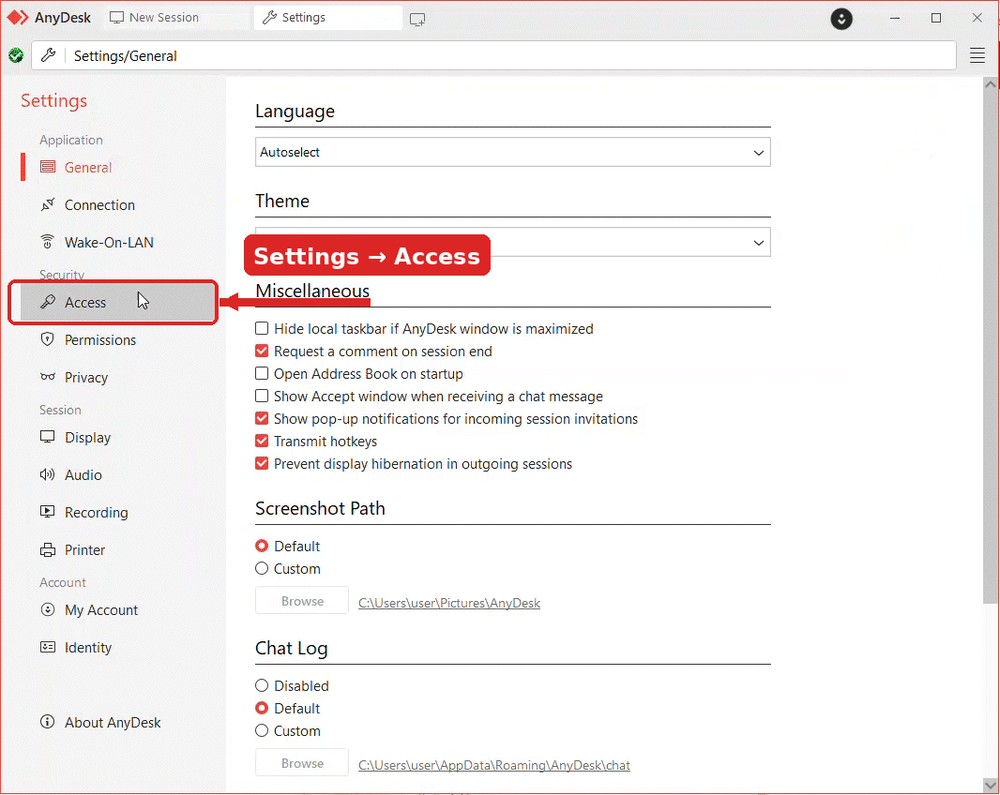
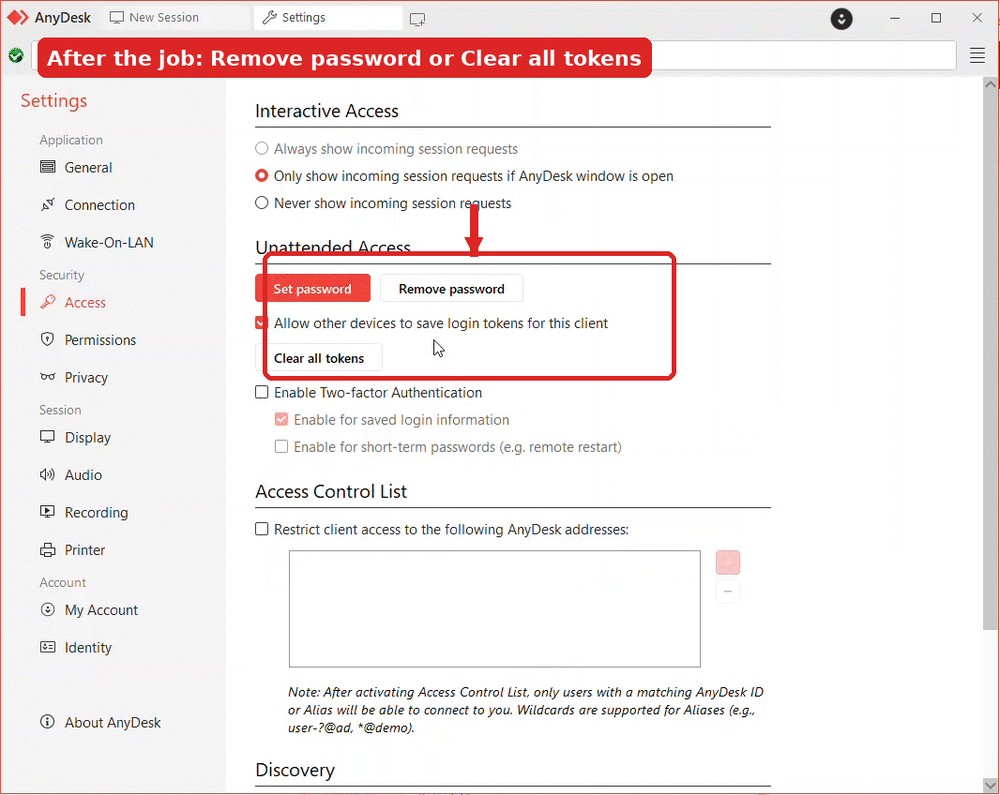
1 Open Settings → Access
In AnyDesk open Settings, then Access (under Security).
2 Remove the password, or set a new one only you know
In Unattended Access:
- Click Remove password to turn Unattended Access off, or
- Click Set password, enter a new password that only you know, then Apply (this also invalidates old saved logins).
3 Clear all tokens (recommended)
Still under Unattended Access, click Clear all tokens so no old automatic login remains.
You can also uninstall AnyDesk completely if you no longer need it. Prefer to do this together with us on the phone if you are unsure.
Questions?
Message us on WhatsApp (preferred) or call. Please describe the task in detail (office: how many seats, what gear you already have, which ISP; home: what exactly does not work).
WhatsApp message is the easiest way to reach us, we reply fast
WhatsApp 053-452-0055Or call: 053-452-0055
NetOffice TLV
Hebrew, Russian, English · netoffice.co.il · eugeny@netoffice.co.il